A cluttered computer desktop or an unorganized hard drive drains your daily productivity and mental clarity just as much as a messy physical desk. Studies show that the average professional spends up to 15-20 minutes every single day searching for lost files, messy bookmark links, or receipts. That represents over two full weeks of wasted work every single year!
Taking control of your digital environment is simple. This guide lays down the fundamental laws of digital workspace hygiene, standard file-naming conventions, and bookmark management to keep your workflow extremely fast.
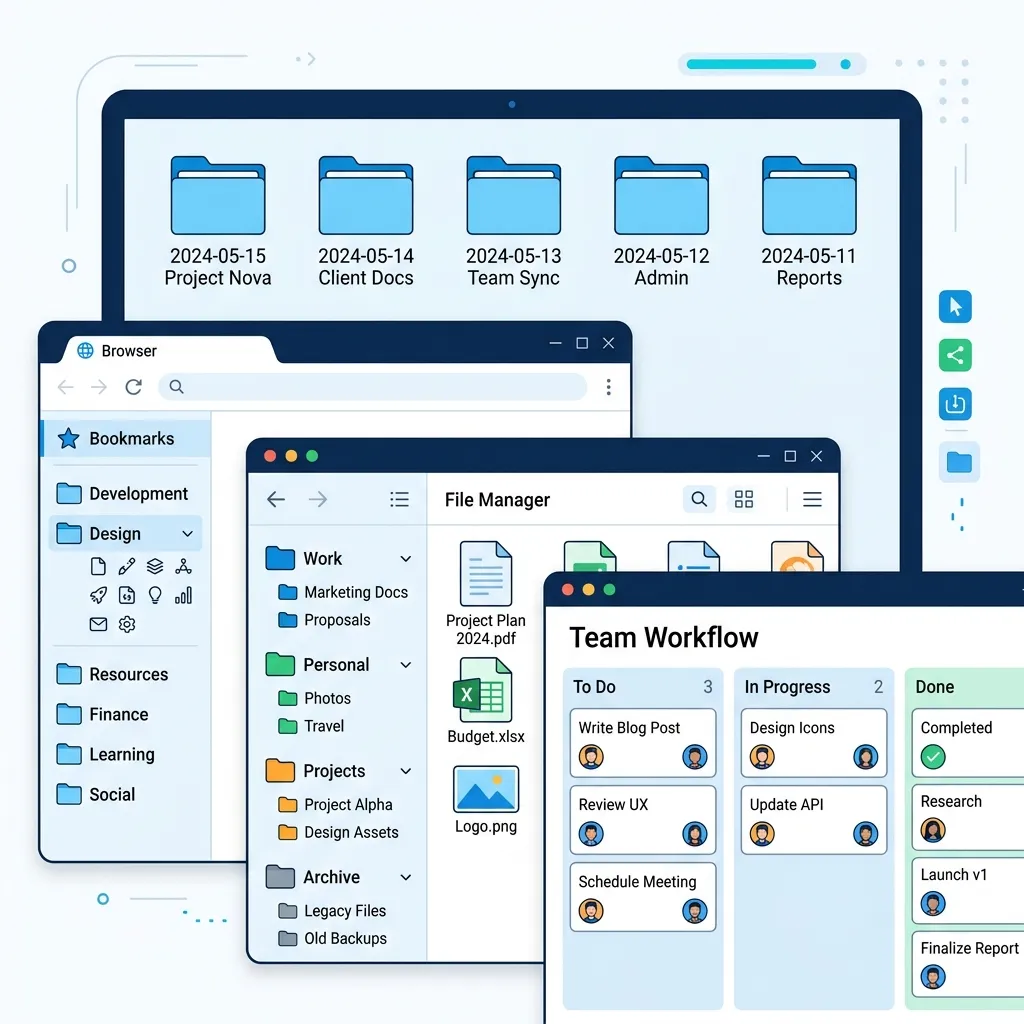
Historical Context: From Filing Cabinets to Digital Trees
In the late 19th century, Edwin Seibels revolutionized paper record management by inventing the vertical filing cabinet, a system that allowed physical documents to be suspended in folders arranged within heavy sliding drawers. This physical paradigm of folders, nested directories, and labeled tabs served as the conceptual blueprint for digital storage systems when modern computing emerged in the mid-20th century.
During the 1960s and 1970s, legendary computing pioneers such as Douglas Engelbart (who demonstrated the first integrated GUI, mouse, and hyperlink system in the famous "Mother of All Demos") and Alan Kay at Xerox PARC translated these physical metaphors into visual representations on screens. Hierarchical file systems (introduced in Early Unix and later adapted into modern storage architectures like NTFS, APFS, and ext4) allowed files to be stored in nested tree layouts. However, as computer storage scaled exponentially from kilobytes to multi-terabyte solid-state drives, the spatial metaphor of deep nested folders began to collapse under its own weight. Modern workspaces require a highly conscious layout strategy to avoid directory bloat and search fatigue.
The Cognitive Science of Visual Layouts
Your brain's visual cortex is highly sensitive to clutter. Human cognitive performance is governed by John Sweller's Cognitive Load Theory, which asserts that working memory has a strictly limited capacity for processing concurrent stimuli. When you open your desktop or root folder and are confronted with 100+ unorganized files, it triggers a phenomenon known as "continuous neural competition" in your visual cortex. Every single icon, random screenshot, and misnamed PDF competes for your brain's processing resources, draining glucose and executive energy before you have even begun your primary task.
To optimize focus, we must design layouts that respect Miller's Law, which states that the average human mind can actively hold only $7 \pm 2$ items in its working memory at one time. If a directory contains 30 folders at the same level, your brain must switch from fast, parallel holistic scanning to slow, linear reading. Keeping your top-level directories simple and highly distinct reduces visual search latency and eliminates decision fatigue.
The "Rule of Three" Directory Layout
Never let your primary "Desktop" or "Downloads" folder become a dumping ground. Instead, establish three master root directories on your primary drive. All files must reside in one of these locations:
- 01_Active_Projects: Sits at the top of your stack. Contains only files and folders for projects you are currently working on this week. Limit this folder to a maximum of 5-6 active projects.
- 02_Resources: Holds reference materials, standard templates, guidelines, toolkits, asset libraries, and reusable scripts. These are things you need to read or reference, but are not active tasks.
- 03_Archive: The digital basement. The exact second a project is completed or a contract ends, move its entire directory into the Archive. Keep this structured by year (e.g.,
Archive/2026/) for simple lookup.
Flat vs. Deep Directories: The Traversal Equation
In data architecture, developers choose between flat systems and deep nested trees. In human workspace design, the same trade-off exists. Finding a file in a deeply nested structure with depth d requires the user to double-click through multiple folders. Each click introduces visual re-orientation latency, adding 200–500ms of cognitive drag per step. Conversely, a completely flat directory containing thousands of files forces you to rely entirely on index search tools, which fails when you cannot remember the specific keywords. The "Rule of Three" maintains a shallow depth (d ≤ 3) and a narrow branching factor (b ≤ 7), striking the perfect balance between human spatial recall and computational retrieval speed.
Standardized File-Naming Conventions
A search tool is only as good as the names you feed it. To make files immediately identifiable, establish a strict naming format that uses ISO 8601 Date structures and descriptive underscores instead of spaces:
✓ Good Examples: -
2026-05-23_Shader7_Receipt_Maker_V1.pdf
- 2026-04-19_Goa_Trip_Budget_Proportional.xlsx
✗ Bad Examples: -
Resume final final draft 2.pdf
- Scan_0034.jpg
The Logic of ISO 8601 Chronological Sorting
Operating systems sort files alphabetically using ASCII/Unicode values from left to right (lexicographical sorting). If you name files using traditional formats like `DD-MM-YYYY` (e.g., `24-05-2026.pdf` and `01-06-2025.pdf`), the filesystem compares the first characters (`2` vs `0`) and incorrectly sorts the older 2025 file after the 2026 file. By using the ISO 8601 international standard structure (`YYYY-MM-DD`), you guarantee that alphabetical sorting perfectly aligns with actual chronological sorting. This single change ensures that client reports, financial records, and design drafts stay naturally ordered by time.

Workspace Methodologies Compared
| System Name | Core Structure | Cognitive Load | Ideal Audience | Scale Speed |
|---|---|---|---|---|
| Rule of Three | Active, Resources, Archive | Very Low | Freelancers & Developers | Fast & Low Maintenance |
| PARA Method | Projects, Areas, Resources, Archive | Medium | Content Creators & Managers | Highly Scalable |
| Flat Tagged | No folders; dynamic tags | High (Requires Search) | Database Admins & Power Users | Slow Initial Setup |
| Chronological | Temporal folders (YYYY/MM) | Medium-Low | Photographers & Accountants | Predictable Timeline |
Mastering Browser Bookmark Hygiene
Keeping 50+ open tabs active is a heavy drain on your computer's RAM and makes finding specific tabs impossible. Implement this simple folder structure in your browser's Bookmark Bar:
- [Daily]: Limit to 3-4 web pages you open every morning (e.g., calendar, email, primary board).
- [Design/Photo]: Links to browser utilities like our Photo Compressor and Passport Photo Pro for immediate access.
- [Calculators]: Links to financial calculators (Salary conversions, FairShare splitter) and G-Code charts.
- [Reading]: Save articles to read later here rather than leaving tabs open. Empty this weekly.
The Weekly 15-Minute Declutter Checklist
Schedule a recurring reminder every Friday afternoon to go through this quick cleanup routine:
- Empty your computer's "Downloads" folder entirely. Delete temporary files or move them to active/archive slots.
- Move completed projects from `01_Active_Projects` to `03_Archive`.
- Close all browser tabs. Bookmark those that require future actions.
- Empty your computer's Recycle Bin / Trash.
Automate the Cleanup: The Staging Script
For technical users and developers, executing manual cleanup tasks can feel like repetitive friction. You can easily automate desktop and downloads staging with a custom shell script. Save the code below as clean_workspace.sh and configure it as a weekly cron job or execute it manually whenever clutter starts to accumulate:
# CleanWorkspace - Multi-platform Shell Script
#!/bin/bash
STAGING_DIR="$HOME/Incoming_Staging/$(date +%Y-%m-%d)"
mkdir -p "$STAGING_DIR"

echo "Initializing digital workspace declutter protocol..."

# 1. Sweep files older than 2 hours from Downloads to daily staging folder
find "$HOME/Downloads" -maxdepth 1 -mmin +120 -type f -exec mv {} "$STAGING_DIR/" \;

# 2. Sweep unlinked files from Desktop to staging (excluding config and shortcut files)
find "$HOME/Desktop" -maxdepth 1 -type f ! -name "*.lnk" ! -name "*.desktop" ! -name "*.ini" -exec mv {} "$STAGING_DIR/" \;

echo "Success! Unorganized files have been safely relocated to: $STAGING_DIR"
echo "Please review and move them to '01_Active_Projects' or '02_Resources'."
Frequently Asked Questions
Q1: Why are spaces in filenames considered bad practice in modern workflows?
In command-line interfaces (CLI) and development environments (such as Bash, PowerShell, or Python scripts), spaces act as argument delimiters. If you name a file Annual Budget 2026.pdf, a script attempting to copy, backup, or read it will treat "Annual", "Budget", and "2026.pdf" as three completely different files. To avoid this, developers must explicitly wrap the file path in double quotes or escape the spaces manually (Annual\ Budget\ 2026.pdf). Using underscores (_) or hyphens (-) prevents this friction entirely, ensuring that your scripts, automated backup routines, and command line tools run flawlessly with zero adjustments.
Q2: Should I use tags instead of nested folders if my operating system supports them?
Tags (such as those natively supported in macOS Finder or third-party file managers) are incredibly powerful because they permit a single file to reside in multiple logical categories simultaneously (e.g., a file can be tagged with both `#Invoice` and `#Client_X`). However, tag metadata is notoriously platform-dependent and is frequently lost when uploading files to shared cloud storages (like Google Drive, Dropbox, or OneDrive), copying to external drives formatted in FAT32/exFAT, or transferring across operating systems. A robust folder structure is universally supported across every platform ever built. We recommend using folders as your primary, deterministic physical database structure, and leveraging tags only as a secondary, non-destructive layer for rapid desktop filtering.
Q3: What are the performance limits of flat directories in modern filesystems?
Modern filesystems like NTFS (Windows), APFS (macOS), and ext4 (Linux) utilize advanced directory indexing models based on B-trees or HTrees. While the physical hardware will not experience severe bottleneck slowdowns when a single directory contains up to 10,000 files, the actual bottleneck is the operating system's Graphical User Interface (GUI). Every time you open a bloated directory, the File Explorer must read metadata, extract icon previews, generate image thumbnails, and compute file sizes, which results in visible desktop lag and high CPU spikes. Additionally, the human brain cannot easily search through thousands of visible elements, which drastically increases the physical time you spend scrolling.
Q4: How does the "Rule of Three" scale for shared team environments?
In collaborative workspaces (like team Google Drives, Slack file spaces, or shared Github repositories), file sprawl escalates exponentially. The "Rule of Three" scales beautifully by adapting the root directories to a team-wide permission framework:
- 01_Active_Workspaces: Shared folders grouped by department, client, or sprint, where team members have full write permissions.
- 02_Assets_Brand: Brand libraries, official templates, font files, and onboarding manuals. This directory is configured with read-only permissions for general staff, preventing accidental deletion of corporate assets.
- 03_Corporate_Archives: Read-only archives of historical contracts, previous campaigns, and completed client deliverables, maintaining a clean repository of intellectual property.
Enhance Your Digital Productivity Toolkit
Use the Shader7 platform to access essential, fast browser-first utilities. Build professional resumes, crop ID photos, split group expenses, and compress images securely with zero server uploads.
Explore All Free Tools →